
Paycor Time Clock — Employee Time & Attendance Login
The Paycor time clock feature is part of the Paycor HCM platform and is accessed through the standard Paycor login portal at hcm.paycor.com/authentication/signin. After signing in, employees navigate to the Time section to clock in and out, view their time card, check PTO balances, and submit time-off requests. This guide explains how Paycor's time and attendance system works, the different clock-in options available, and how to handle common time tracking issues.
What Is Paycor Time Clock?
Paycor Time is the time and attendance module within Paycor HCM. It provides employees with multiple ways to record their work hours and gives managers real-time visibility into attendance, overtime risk, and labor costs. Paycor Time is not a separate product or separate login — it is an integrated part of the main Paycor HCM platform.
Paycor Time works for organizations with diverse scheduling needs: single-location businesses, multi-site enterprises, remote workers, and field-based teams. The system handles simple in/out time tracking as well as complex configurations like department-level job costing, California break compliance, and union-specific pay rules.
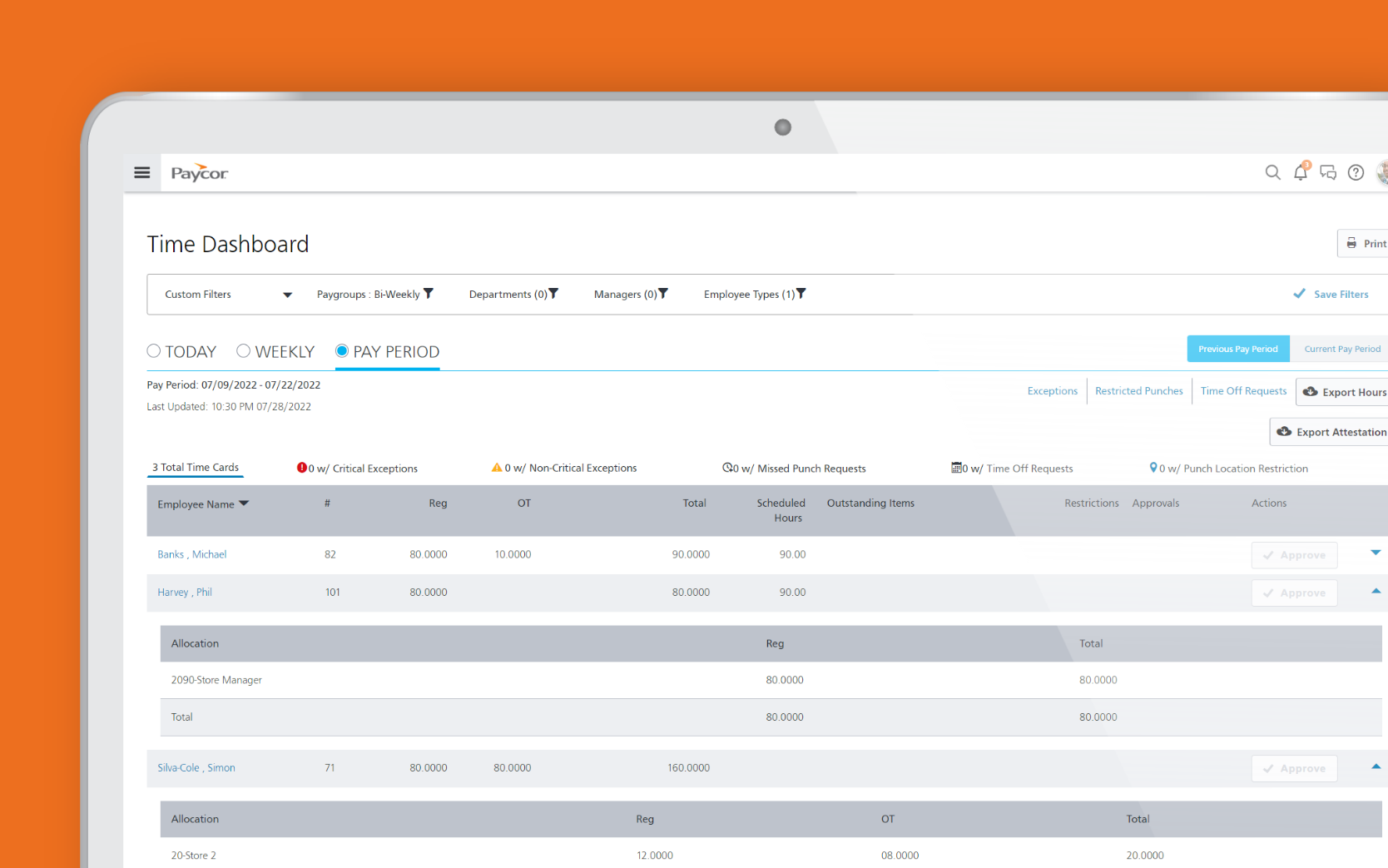
How to Clock In with Paycor — Web Portal
Clocking in via the Paycor web portal takes less than 30 seconds:
Log in to Paycor
Go to hcm.paycor.com/authentication/signin and sign in with your email and password. If your employer uses SSO, use your corporate login.
Navigate to Time
From your Paycor home dashboard, find and click the Time section in the main navigation. Some employers configure a Time widget directly on the home screen for faster access.
Click Clock In
Click the Clock In button. Paycor records the exact timestamp. If your employer uses job costing or department tracking, you may be prompted to select a job code or department before clocking in.
Clock out when done
At the end of your shift, return to the Time section and click Clock Out. Your time card is updated automatically and submitted to your manager's queue for approval.
Paycor Mobile Time Clock
The Paycor mobile app (available for iOS and Android) includes full time clock functionality, making it the preferred option for remote employees, field workers, and employees without regular computer access.
Mobile clock-in features include:
- GPS time stamp: Each mobile clock-in records the employee's GPS coordinates at the time of the action.
- Geofencing: Employers can restrict mobile clock-in to specific geographic areas, preventing off-site clock-ins.
- Facial recognition (optional): Some Paycor hardware configurations include biometric verification — this is a hardware feature, not the standard mobile app.
- Offline mode: The app can record a clock-in even when there is no internet connection and syncs when connectivity is restored.
- Break tracking: Employees can record meal and rest breaks separately from shift start/end times.
To use mobile time clock, download the Paycor app from the App Store or Google Play, sign in with your regular Paycor credentials, and tap the clock icon on the home screen.
Paycor Time Clock Hardware Options
For workplaces where employees do not have regular computer or smartphone access — such as manufacturing floors, warehouses, or restaurant kitchens — Paycor offers integrated hardware time clock terminals. These physical devices connect to the Paycor HCM system and allow employees to clock in using:
- PIN entry (4–6 digit personal identification number)
- RFID badge tap
- Biometric fingerprint (on select models)
- QR code scan via the Paycor mobile app
Time clock hardware is provided through Paycor's partner network. Your HR administrator or your Paycor account manager can advise on hardware options based on your team size and location requirements.
What Managers See in Paycor Time
Managers and HR administrators have a broader view of the time and attendance system than individual employees. After logging in, managers can:
- View all team members' current clock-in status in real time
- Review and approve or reject submitted time cards before each payroll run
- See alerts for overtime risk (employees approaching overtime thresholds)
- Track attendance patterns: late arrivals, absences, and early departures
- Approve or deny time-off requests and view team PTO calendars
- Run labor cost reports by department, job code, or time period
What to Do If You Forgot to Clock In or Out
Missed punches are a common issue in any time tracking system. Here is how to handle them in Paycor:
- Log in to Paycor at hcm.paycor.com.
- Go to the Time section and locate your time card for the relevant date.
- Look for an option to Add Punch, Edit Time Entry, or Request Correction (exact wording varies by employer configuration).
- Enter the correct time you should have clocked in or out.
- Add a note explaining the missed punch.
- Submit the correction — your manager will receive a notification to approve the change.
Frequently Asked Questions
How do I clock in with Paycor?
Log in to hcm.paycor.com/authentication/signin, navigate to the Time section, and click Clock In. You can also use the Paycor mobile app to clock in from your phone, or use a physical Paycor time clock terminal at your workplace.
Where is the Paycor time clock login page?
The Paycor time clock is accessed through the main Paycor login page at hcm.paycor.com/authentication/signin. After signing in, navigate to the Time section to clock in, view your time card, or manage time-off requests. There is no separate time clock login.
Can I use Paycor time clock on my phone?
Yes. The Paycor mobile app (iOS and Android) includes a mobile clock-in feature. Your employer may enable geofencing to require you to be within a set distance of a work location before the mobile clock-in is accepted. Download the "Paycor" app from your device's app store.
What if I forgot to clock in or out in Paycor?
Log in to Paycor, go to the Time section, and find the option to add or edit a time entry for the relevant date. Your manager will need to approve the correction before it is reflected in your official time card. Submit corrections as soon as possible before the payroll cutoff.
Does Paycor time clock support geofencing?
Yes. Paycor supports GPS-based geofencing for mobile clock-ins. Your employer can set geographic boundaries so that employees can only clock in via mobile when physically at or near a designated work location. This is configured by your HR administrator, not by individual employees.