
Paycor Employer Login — Admin & HR Manager Portal Access
Paycor HR administrators and employers use the same login page as employees: hcm.paycor.com/authentication/signin. Once authenticated, the system presents the full HR administration console based on the permissions assigned to your account. This guide covers what administrators can do after login, step-by-step sign-in instructions, how to manage multiple admin users, and frequently asked questions.
What Employers & HR Admins Can Do After Login
Paycor's employer-facing admin console covers the full spectrum of HR and payroll management. Permissions vary by role — a payroll specialist may have access only to payroll functions, while an HR director may have full system access.
Employer Admin Console — Module-by-Module Breakdown
After logging in with admin credentials, the Paycor HCM console provides access to every aspect of workforce management. Here is a detailed breakdown of what each module offers:
Payroll
Run payroll on any schedule — weekly, biweekly, semi-monthly, or monthly. The payroll wizard walks through three stages: review employee hours and time data, verify deductions and garnishments, preview payroll totals before submission. Paycor handles all federal, state, and local tax calculations and e-files tax deposits automatically. Admins can also process off-cycle payroll runs for bonuses, commissions, or final paychecks. Payroll history going back to your first run is stored and searchable at any time.
Employee Management
The Employees module is the central record for every worker. Admins can add new employees (triggering a Welcome Email automatically), update existing employment records such as salary changes or position changes, process terminations and generate offboarding checklists, and view the full organizational chart. Employee records store personal information, employment history, pay history, document uploads, and a complete audit trail of changes.
Time & Attendance
Review and approve employee timesheets for the current pay period. Handle missed punch corrections submitted by employees or managers. Configure overtime rules by department or location. View labor cost reports in real time to monitor hours-worked versus budget. The scheduling sub-module (Paycor Scheduling) allows admins and managers to build shift schedules, publish them to employees, and fill open shifts.
Benefits Administration
Manage all benefit plans from a single interface. Configure medical, dental, vision, life insurance, and voluntary benefit plans. Open and close enrollment windows, add qualifying life events for mid-year changes, and connect to insurance carriers via EDI data feeds for automatic enrollment updates. Run ACA (Affordable Care Act) reports including 1094-C and 1095-C generation. View employee benefit elections and dependent coverage details.
Reporting & Analytics
Paycor includes a library of standard compliance reports: OSHA 300, EEO-1, FLSA overtime, headcount by location, turnover rate, and more. Admins can build custom reports using a report builder, export results to Excel or PDF, and set up scheduled report delivery by email. The Paycor Analytics module (available on higher tiers) adds benchmarking data comparing your organization to industry peers.
Recruiting & Applicant Tracking
Post open positions to major job boards (Indeed, LinkedIn, ZipRecruiter) from a single interface. Track applicants through customizable hiring stages. Score and filter candidates with AI-assisted matching. Schedule interviews, collaborate with hiring managers, send offer letters, and convert accepted offers directly into new employee records — eliminating duplicate data entry between recruiting and payroll.
User Management & Security
Create new user accounts for HR team members and managers. Assign permission roles (Super Admin, Payroll Admin, HR Generalist, Manager, Read-Only). Configure SSO settings if your organization uses an identity provider. Reset employee passwords from the employee profile under Actions. View a login audit log to see who accessed the system and when.
Multi-Admin Access and Roles in Paycor
Many organizations have multiple Paycor administrators with different levels of access. Paycor supports granular role-based access control so that each user sees only what is relevant to their job function. This reduces data exposure risk and keeps sensitive payroll data away from users who do not need it.
Common Paycor admin role configurations:
- Super Admin — Full access to all modules and settings. Can create and manage other user accounts, configure SSO, and view all organization data. Typically the HR Director or Head of HR Operations.
- Payroll Admin — Runs payroll, processes tax filings, handles garnishments, and exports to general ledger. Does not have access to recruiting, learning, or benefits configuration unless specifically granted.
- HR Generalist — Manages employee records, handles onboarding, processes terminations, and manages time-off policies. Typically does not have payroll processing access — they can view but not submit payroll.
- Benefits Administrator — Manages benefit plan configuration, enrollment windows, carrier connections, and ACA reporting. Scoped specifically to the Benefits module.
- Manager / Supervisor — Views and approves their direct reports' timesheets, PTO requests, and schedules. Can view (but not edit) their team's employment records. Cannot access payroll or company-wide data.
- Read-Only — Can view reports and employee data but cannot edit any records or process any transactions. Often used for finance team members or external auditors.
Role assignments are managed by the Super Admin under Settings → Users & Roles. If a manager needs broader access — for example, a department head who also needs to run departmental payroll — contact your Paycor Super Admin, not Paycor support. Access level is entirely controlled within your organization's account.
Step-by-Step: Paycor Employer Login
Navigate to the Paycor login page
Go to hcm.paycor.com/authentication/signin. This is the same login URL used by all Paycor users. There is no separate employer portal — your permissions control your access level after login.
Enter your admin email and password
Use the email address registered for your admin account. This is typically your work email. Admin accounts are provisioned by the Paycor account owner or an existing super-admin within your organization.
Complete MFA verification
Paycor strongly recommends MFA for all administrator accounts, and many organizations make it mandatory for admin logins. Enter the verification code sent to your registered device. If MFA is not yet enabled, your Paycor account owner can configure it under Security Settings.
Access the HR admin console
After authentication, the system routes you to your personalized admin dashboard based on your role. Use the main navigation to access Payroll, Employees, Time, Benefits, Reports, or Settings.
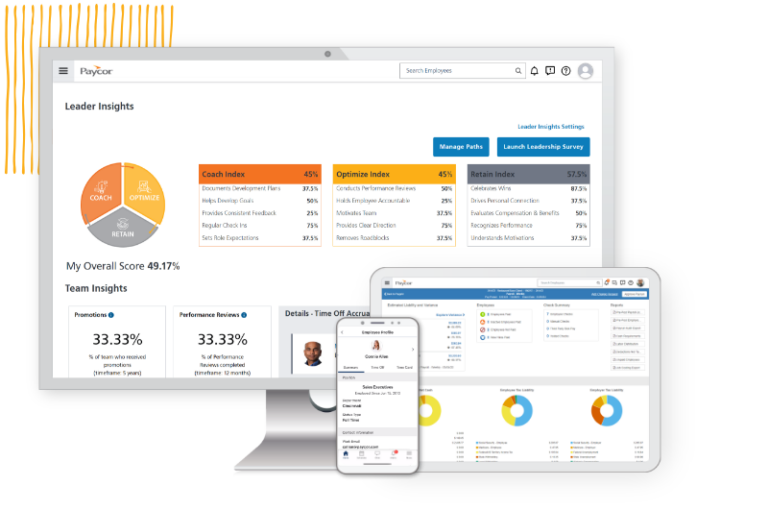
Multi-User & Admin Roles in Paycor
Paycor supports granular role-based access control, which is especially important for larger organizations where different team members handle different HR functions. The system allows employers to create multiple administrator accounts with precisely scoped permissions:
- Super Admin: Full system access, including the ability to create and manage other user accounts.
- Payroll Admin: Can run and submit payroll, view payroll reports, and manage payroll settings, but may not have access to recruiting or benefits modules.
- HR Manager: Access to employee records, onboarding, performance management, and time-off approvals, but may not have payroll processing rights.
- Benefits Admin: Manages benefits enrollment, carrier connections, and ACA reporting.
- Manager/Supervisor: Can view and approve their direct reports' time cards, time-off requests, and basic HR data.
- Read-Only: Can view reports and employee data but cannot make changes.
To add a new admin user, log in as a Super Admin, navigate to Settings > Users & Roles, click Add User, enter the new user's email and name, assign the appropriate role, and send an invitation. The new admin will receive a Paycor Welcome email to set up their own password.
How to Add a New Employee in Paycor
Adding a new employee in Paycor is one of the most common HR admin tasks. Here is how it works:
- Log in as an HR admin and navigate to the Employees section.
- Click Add Employee (or New Hire in some interface versions).
- Enter the employee's personal information: name, date of birth, Social Security number, home address, and emergency contact.
- Set employment details: start date, position, department, manager, work location, and employment type (full-time, part-time, etc.).
- Configure pay settings: pay type (hourly or salary), pay rate, pay schedule, and direct deposit details if available.
- Set up tax withholding: Paycor will prompt the employee to complete their own W-4 electronically.
- Click Save and send the employee their Welcome email with login setup instructions.
If your organization uses Paycor Recruiting, new hires can be converted directly from an ATS candidate profile into an employee record, pre-populating most fields automatically.
Frequently Asked Questions
Where do HR admins log in to Paycor?
HR administrators log in at hcm.paycor.com/authentication/signin — the same URL used by employees. The difference is that admin accounts have elevated permissions that unlock the full HR management console after authentication.
What can HR admins do after Paycor employer login?
HR admins can run payroll, manage all employee records, approve or deny time-off requests, generate workforce analytics reports, administer benefits enrollment, handle onboarding, configure payroll settings, and manage user roles. Specific access depends on the role assigned to your account.
How do I run payroll in Paycor?
Log in as an HR admin, go to the Payroll section, and select Run Payroll. Paycor guides you through a step-by-step payroll run that validates data and checks for errors before submission. You can preview totals before finalizing. Paycor handles federal, state, and local tax calculations and filings automatically.
Can multiple HR users share a Paycor admin account?
No. Each HR user should have their own login credentials. Paycor supports role-based access controls, allowing you to create multiple admin accounts with different permission levels — payroll-only, benefits admin, full admin, etc. Shared accounts create compliance and audit trail issues.
How does Paycor handle multi-location employers?
Paycor supports multi-location and multi-entity organizations. Admins can filter employee views, payroll runs, and reports by location or business unit. Each location can have designated HR admins with appropriate access levels, allowing decentralized HR management under a single Paycor account.
How do I add a new employee in Paycor?
Log in as an HR admin, go to Employees > Add Employee, and complete the new hire form (personal info, employment details, pay settings, and tax withholding). Click Save and Paycor sends the new employee a Welcome email to set up their own login credentials. If your organization uses Paycor Recruiting, new hires can be converted directly from an ATS candidate profile, pre-populating most fields automatically.
How do I run payroll in Paycor?
After logging in as an admin, go to Payroll → Run Payroll. Follow the step-by-step wizard: review employee hours and time data → verify deductions and garnishments → preview payroll totals → submit. Paycor handles all federal, state, and local tax calculations and direct deposit processing automatically. You can also run off-cycle payrolls for bonuses or termination pay from the same section.
How do I reset an employee's Paycor password?
In the admin console, navigate to Employees → [Employee Name] → Actions → Reset Password. Paycor sends a password reset email to the employee's registered email address. The employee follows the link in that email to create a new password. If the employee no longer has access to their registered email, you will need to update their email address in their profile before initiating the password reset.