
Paycor Login Guide — Employee & Employer Portal Access
The Paycor login portal is located at hcm.paycor.com/authentication/signin. Both employees and HR administrators use this same URL to sign into Paycor's Human Capital Management platform. This guide covers step-by-step login instructions, the difference between employee and employer access, forgot-password procedures, and troubleshooting for the most common login issues.
Employee Login
View pay stubs, PTO balance, benefits, and W-2s. Clock in/out if time tracking is enabled.
Employee Sign In ↗Employer Login
Run payroll, manage employees, view reports, handle benefits enrollment, and access HR tools.
Admin Sign In ↗Both buttons open the same official Paycor portal at hcm.paycor.com — your role is determined by your account permissions.
How to Log In to Paycor — Step by Step
Follow these five steps to sign in to your Paycor HCM account:
Go to the Paycor login page
Open your browser and navigate to hcm.paycor.com/authentication/signin. You can also use the link on this page — it opens the official Paycor portal directly. Bookmark this URL for quick access in the future.
Enter your email address
Type the email address your employer used when creating your Paycor account. For most users this is your work email address. If you are unsure which email to use, check the Paycor Welcome email your employer sent when you were first set up.
Enter your password
Type your Paycor password. Passwords are case-sensitive. First-time users typically receive a setup email from Paycor with a link to create an initial password before their first login.
Complete multi-factor authentication (if enabled)
If your organization has enabled MFA — a security measure Paycor strongly recommends — you will be prompted to enter a verification code. This code is sent to your registered phone number or email address. Enter the code to proceed.
Access your Paycor dashboard
After authentication, you land on your personalized Paycor dashboard. Employees see pay stubs, PTO balances, and benefits. HR administrators and managers see the full admin console including payroll runs, employee records, and reporting.
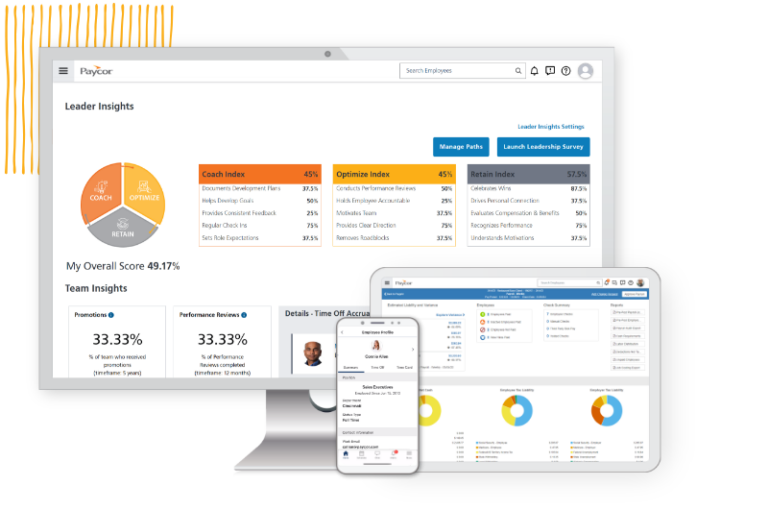
Employee vs Employer Login — What's the Difference?
A common question is whether employees and employers use different login pages. The answer: both use the exact same URL — hcm.paycor.com/authentication/signin. The difference lies in what you see after you authenticate.
Employee access is limited to personal data: your pay stubs, year-to-date earnings, W-2 documents, PTO balance, benefits elections, and personal contact information. Employees can update their own direct deposit details and make certain benefits changes during open enrollment.
Employer/Admin access unlocks the full HR console: running payroll, viewing all employee records, generating compliance and analytics reports, managing time-off approvals, administering benefits, and handling onboarding workflows. Role-based permissions mean that a manager may see their direct reports but not the entire company directory.
Your organization's Paycor administrator controls which features each user can access. If you believe your access is missing features you should have, contact your HR department rather than Paycor support — access level is configured by your employer.
Forgot Paycor Password — How to Reset
If you cannot remember your Paycor password, resetting it takes less than two minutes:
- Go to the Paycor login page at hcm.paycor.com/authentication/signin.
- Click "Forgot Password" (displayed below the sign-in button).
- Enter the email address associated with your Paycor account.
- Check your email inbox for a password reset link from Paycor. The link typically arrives within 2–5 minutes. Check your spam/junk folder if it does not appear in your inbox.
- Click the reset link and create a new password that meets Paycor's complexity requirements (minimum 8 characters, including uppercase, lowercase, and a number or symbol).
- Return to the login page and sign in with your new password.
Paycor Login Troubleshooting
The table below covers the six most common Paycor login problems and their solutions:
| Issue | Likely Cause | Fix |
|---|---|---|
| Invalid email or password | Typo, wrong email, caps lock on | Check caps lock; try "Forgot Password" to reset |
| Page won't load | Browser cache or cookies conflict | Clear browser cache; try incognito/private window |
| MFA code not received | Delay in SMS or email delivery | Wait 60 seconds; check spam; use backup code if available |
| Account locked | Too many failed login attempts | Wait 15 minutes or contact HR admin to unlock |
| "Session expired" message | Paycor auto-logout after inactivity | Simply log in again; this is a security feature |
| SSO login not working | Corporate SSO configuration issue | Contact your IT department; SSO is managed by your employer |
First-Time Paycor Login — New Employee Setup
When HR adds a new employee to Paycor, the platform automatically sends an account setup email to the address the employer registered. The subject line is typically "Welcome to Paycor", sent from noreply@paycor.com. That email contains a one-time activation link.
Steps for first-time login:
- Open the Welcome Email and click the activation link. Links expire in 72 hours, so act promptly.
- Create a permanent password following Paycor's complexity requirements (8+ characters, mixed case, number or symbol).
- Optionally enable multi-factor authentication — strongly recommended for all accounts.
- Complete your profile: verify that your personal details, address, and emergency contacts are correct.
- Set up direct deposit under Payroll → Direct Deposit if prompted.
- You land on your Paycor dashboard — bookmark hcm.paycor.com/authentication/signin for all future logins.
If the activation link has expired: go to the Paycor login page at hcm.paycor.com/authentication/signin, click "Forgot Password," and enter your work email to receive a new link. If that does not work — for example, if the email is not yet recognized — ask your HR administrator to resend the Welcome Email from within the Paycor admin console (Employees → [your name] → Actions → Resend Welcome Email).
Paycor Single Sign-On (SSO) Login
Many enterprise organizations configure Paycor with Single Sign-On (SSO) using the SAML 2.0 protocol. With SSO enabled, the login experience is slightly different from the standard flow:
- Navigate to hcm.paycor.com/authentication/signin.
- Enter your work email address.
- Paycor detects that your organization uses SSO and redirects you to your corporate identity provider — typically Microsoft Azure Active Directory (Entra ID), Okta, or Google Workspace.
- Authenticate using your corporate credentials (the same username and password you use for Office 365, Slack, or other work tools).
- After successful corporate authentication, you are automatically returned to Paycor and logged in — no separate Paycor password required.
If your SSO login is broken:
- Ensure you are entering your work email, not a personal email. SSO is tied to your corporate email domain.
- Contact your IT or IT Security team — SSO configuration is managed by your employer, not by Paycor. Paycor support cannot resolve SSO issues on your company's identity provider side.
- As a fallback, ask your Paycor Super Admin to temporarily disable SSO for your specific account, which allows you to set a direct Paycor password and log in without the SSO flow.
Paycor Login via Mobile App
The Paycor mobile app — available for iOS and Android — uses the same credentials as the web portal at hcm.paycor.com. There is no separate mobile account. To get started, download the app called "Paycor" from the App Store or Google Play, then sign in with your email and Paycor password.
After your first successful mobile login, the app offers the option to enable biometric authentication (Touch ID or Face ID on iPhone; fingerprint on Android). Once enabled, you can unlock the app with a fingerprint or face scan rather than typing your password each time.
The Paycor mobile app is particularly useful for:
- Clocking in and out directly from your phone (employees)
- Viewing your schedule and checking PTO balance on the go
- Reviewing your most recent pay stub without opening a browser
- Approving time-off requests and reviewing team dashboards (managers)
- Receiving push notifications for payroll deposits and schedule changes
If your organization uses SSO, tap the SSO option on the app's login screen to be redirected to your corporate identity provider rather than entering a Paycor-specific password.
Common Paycor Login URL Variants
Many users arrive searching for slightly different URL formats. The correct Paycor login URL is always: https://hcm.paycor.com/authentication/signin. Below are common variants and what happens when you use them:
| URL / Search Term | What Happens | Correct Action |
|---|---|---|
| paycor.com/login | Redirects to Paycor marketing site, not the HCM portal | Use the direct URL: hcm.paycor.com/authentication/signin |
| www.paycor.com/login | Same as above — marketing site, not login portal | Use the direct URL: hcm.paycor.com/authentication/signin |
| paycorlogin.com | Not an official Paycor domain — avoid entering credentials | Never use unofficial domains; always verify hcm.paycor.com |
| hcm.paycor/authentication/signin | Missing .com — will not resolve | Full URL must include .com: hcm.paycor.com/authentication/signin |
| paycor login (search) | Returns multiple results including unofficial sites | Bookmark the direct URL to avoid search result confusion |
Always verify you are on https://hcm.paycor.com before entering your credentials.
Your browser's address bar should show a padlock icon confirming a valid SSL certificate for
the paycor.com domain.
Paycor Login vs Paycor Sign In vs Paycor Log In — Same Thing
Users search for Paycor access using several different phrases. They all refer to the same page:
| Search Term | What It Means | Same URL? |
|---|---|---|
| paycor login | Sign in to Paycor HCM | ✓ Yes |
| paycor sign in | Sign in to Paycor HCM | ✓ Yes |
| paycor log in | Sign in to Paycor HCM | ✓ Yes |
| paycor employee login | Employee self-service access | ✓ Same URL, employee role |
| paycor employer login | HR/Admin access | ✓ Same URL, admin role |
| paycor authentication login | Technical term for the /authentication/signin path | ✓ Yes |
| hcm.paycor.com login | Direct URL reference | ✓ Yes |
Frequently Asked Questions
What is the Paycor login URL?
The official Paycor login URL is https://hcm.paycor.com/authentication/signin. This is the standard authentication page used by all Paycor users worldwide. Bookmark it for fast future access.
Is paycor login the same as paycor sign in?
Yes — "Paycor login," "Paycor sign in," and "Paycor log in" all refer to the same action at the same URL: hcm.paycor.com/authentication/signin. The terminology difference is a matter of user preference, not platform distinction.
Why can't I log in to Paycor?
Common causes include an incorrect email address, wrong password, browser cache issues, or an account that has been locked after multiple failed attempts. Try clearing your browser cache, resetting your password via "Forgot Password," or contacting Paycor support at 844-397-6452.
Does Paycor have a mobile app?
Yes. Paycor offers a mobile app for iOS and Android called "Paycor." Employees can use the app to clock in, view pay stubs, request time off, access benefits, and manage their personal HR profile without opening a browser.
Can I reset my Paycor password without contacting HR?
Yes. Click "Forgot Password" on the login page and enter your work email. Paycor emails a reset link automatically — you do not need to contact your HR department. The exception is if your account email address has changed; in that case, contact your HR admin first.
What browser works best for Paycor?
Paycor supports modern browsers: Google Chrome, Microsoft Edge, Mozilla Firefox, and Apple Safari. Keep your browser updated. Internet Explorer is not supported by Paycor.
What is Paycor authentication login?
"Paycor authentication login" refers to the full path hcm.paycor.com/authentication/signin. The /authentication/signin portion is the technical URL path Paycor uses for its sign-in process. This is the standard Paycor login page — there is no separate "authentication login."
What is Paycor employee self-service?
Paycor employee self-service is the employee-facing portion of the HCM portal. After logging in, employees can view pay stubs, download W-2s, update direct deposit, enroll in benefits, and request PTO — all without involving HR directly. Self-service reduces administrative burden and gives employees on-demand access to their own employment data.
What is my Paycor username?
Your Paycor username is the email address your employer used when setting up your account — usually your work email. Paycor does not use a separate username field; the email address is the sole identifier at the login screen. If you are unsure which email was registered, check your Welcome Email from noreply@paycor.com or ask your HR administrator.
Can I have two Paycor accounts?
If you work for two different organizations that both use Paycor, you can have two separate accounts — each associated with a different email address. Paycor does not support a single login that spans multiple employer accounts. You would need to log in and out when switching between the two employer accounts.
What is paycorlogin.com?
paycorlogin.com is not an official Paycor website. The official Paycor login portal is at hcm.paycor.com/authentication/signin — operated by Paycor, Inc. Always verify the domain in your browser's address bar before entering your email and password. If you are ever unsure, navigate directly to hcm.paycor.com rather than following a link.